Telegram Proxy Setting: Step-by-Step Guide
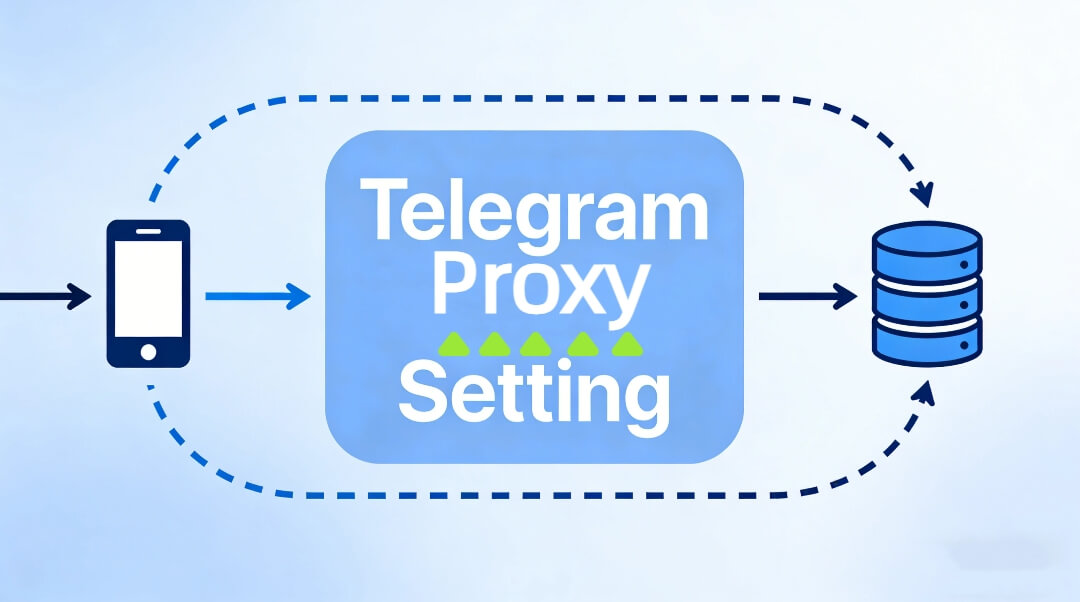
Many users look for a simple and reliable telegram proxy setting tutorial because Telegram sometimes becomes slow or unstable depending on network conditions. If you are trying to improve connection speed, maintain a stable chat experience, or use Telegram while traveling, proxy settings can help you keep Telegram running smoothly. In this guide, we will walk you through a clear, beginner-friendly telegram proxy setting process for iOS, Android, Windows, and Mac. Our goal is to help you understand what Telegram proxy means, when you might need it, and how to pick a secure and reliable proxy option for long-term daily use—without complicated technical steps.
What Is a Telegram Proxy?
A Telegram proxy is a simple connection option that allows Telegram traffic to pass through an alternative server instead of your direct network route. In normal words, Telegram will communicate through another connection point, which can improve stability depending on your region or network provider. This is different from a VPN because a proxy usually applies only to Telegram, while a VPN affects the whole device.
Many users choose a proxy for Telegram simply because it offers smoother connection in busy networks, during travel, or when network performance drops unexpectedly. When choosing a proxy for Telegram proxy setting, consider a reliable provider. Dynamic residential proxies use real IPs, making Telegram run more naturally and reducing the chance of interruptions caused by unstable public proxy lists.
Why You Might Need a Telegram Proxy
There are a few everyday reasons users look into Telegram proxy settings, and most of them are simple and completely normal situations such as:
- improving Telegram message delivery speed
- solving temporary connection delays
- maintaining stable connection while traveling
- keeping Telegram smooth during busy network hours
A proxy does not replace your internet provider—it only gives Telegram a different route to communicate. That’s why Telegram proxy setup is popular among global users who want consistent messaging performance.
For reliable, long-term Telegram use, IPOASIS dynamic residential proxies provide real IP addresses and global routing options for stable daily messaging.

Step-by-Step Telegram Proxy Setting on Different Devices
Although the basic navigation looks similar across devices, Telegram hides proxy options in slightly different places. Below you’ll find platform-specific steps, important differences, and small tips to avoid common setup issues.
Telegram Proxy Setting (iOS / iPhone)
On iPhone, Telegram puts all network settings inside Data and Storage, so don’t look in “Privacy” like many users do.
Steps:
- Open Telegram
- Go to Settings
- Tap Data and Storage
- Select Proxy
- Tap Add Proxy
- Enter server / port
- Turn Use Proxy ON
Notice
- iOS automatically tests the proxy and tells you if it connects
- You don’t need to restart Telegram
Telegram Proxy Setting (Android)
The Android version offers more proxy types and sometimes shows a current connection status under the proxy list.
Steps:
- Open Telegram
- Open the menu
- Tap Settings
- Select Data and Storage
- Open Proxy Settings
- Add your proxy type + details
- Save and enable
Android Tip: If the proxy you entered is invalid, Telegram shows “Connecting…” repeatedly instead of confirming
Windows – Telegram Desktop Proxy
Telegram Desktop hides proxy options inside Advanced, so it can look like there isn’t a proxy option at all.
Steps:
- Open Telegram Desktop
- Click Settings
- Choose Advanced
- Scroll to Connection Type
- Select proxy type (SOCKS/MTProto)
- Enter details
- Apply and restart
Windows Tip: You usually must restart Telegram for the proxy to fully apply
Mac – Telegram for macOS
Mac proxy options behave almost the same as Windows, but the navigation panel uses Preferences instead of “Settings”.
Steps:
- Open Telegram
- Click Telegram menu (top-left)
- Open Preferences
- Select Advanced
- Open Network and Proxy
- Enter proxy details
- Enable proxy
Mac Tip: If the connection doesn’t work immediately, click “Check Connection” (available on newer versions)
Telegram Proxy Setting: Quick advice for beginners
- If you don’t know the encryption type, choose SOCKS5
- Always enter host + port exactly as provided
- MTProto may connect faster in some regions
- If Telegram shows “connecting…” too long → restart or try another node
Which Proxy Works Best for Telegram?
Not all proxies deliver the same experience. Free public proxies may look easy, but they often cause slow speeds, sudden disconnects, or even security risks. For Telegram proxy setting, stability matters more than speed alone.
Recommended characteristics:
- real residential IPs
- global coverage
- consistent uptime
- support for rotation
- reliable provider
A dynamic residential proxy is ideal because it uses real household IPs. This means Telegram communication looks natural and tends to stay more stable over time—perfect for daily Telegram messaging.
Can I Use a VPN Instead of a Proxy for Telegram?
You can use a VPN, but a proxy is usually simpler because it only affects Telegram and doesn’t change your entire device network. A VPN is designed for full device traffic. A Telegram proxy focuses only on Telegram messages, which is enough for most users who simply want stable connection.
Is Telegram Proxy Setting Legal?
Yes, using Telegram proxies is legal when used for normal communication or regular messaging activity. Always make sure to respect local laws and Telegram terms of service. The main goal here is improving connection quality, not changing platform rules.
Common Telegram Proxy Errors & How to Fix Them
If Telegram shows a connection failure notice:
- try another IP location
- check port number
- restart Telegram
- test another network (Wi-Fi or mobile data)
Sometimes the issue is network congestion, not the proxy itself.
Slow proxy? Try a provider with residential IPs and multiple regions. Speed usually improves instantly.
Safety Notes When Using Telegram Proxy
- avoid random free proxies
- stay away from unknown hosts
- choose reliable residential providers
- follow Telegram’s usage policies
Free unknown proxies may contain security risks such as data exposure or unstable performance. Choosing a trusted provider keeps your messages private and your connection stable.
For a hassle-free Telegram proxy experience, IPOASIS dynamic proxies deliver real IP addresses, 99.9% uptime, and multiple global routing options—ideal for long-term Telegram use.
Why Dynamic Residential Proxy Is the Best Option
Dynamic residential proxy = a proxy with real household IP addresses instead of datacenter IPs. This makes Telegram traffic look like regular user traffic, leading to:
- smoother messaging
- stable long-term usage
- fewer connection drops
- ideal for global Telegram communication
- more reliable than public proxy lists
The IP rotates automatically when needed, which helps Telegram stay connected across regions.
Final Thoughts
Setting up telegram proxy setting only takes a few minutes, and the steps are simple across iOS, Android, Windows, and Mac. Whether you use Telegram for personal messaging, global communication, or while traveling, a reliable proxy helps keep messages smooth and stable. Always choose a trusted proxy provider and consider dynamic residential proxies for long-term reliability.